
How to Enable Dark Mode in ReadCube Web App
1 min read
Dark Mode makes reading easier on your eyes, especially in low-light conditions. You can choose your preferred theme in your account settings or directly in the Reader when viewing a paper. This article will show you how to do both on the web app as well as explain how to change themes in the mobile app.
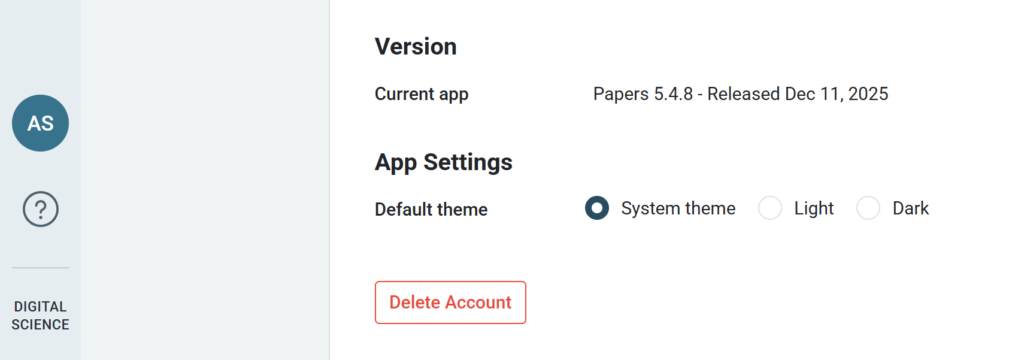
1. Set Theme in General Settings (Web App)
- Log in to ReadCube on the web.
- Click your profile icon and choose My Account.
- Scroll to App Settings and select your preferred theme: System, Light or Dark.
- Your choice will apply across the web app.
2. Set Theme in the Reader (When Viewing a Paper)
- Open any paper in ReadCube.
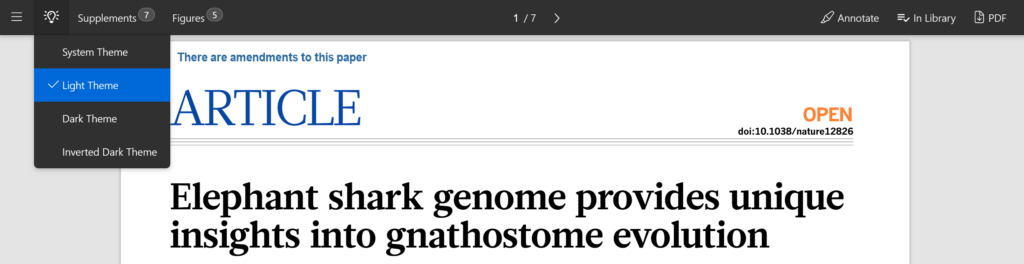
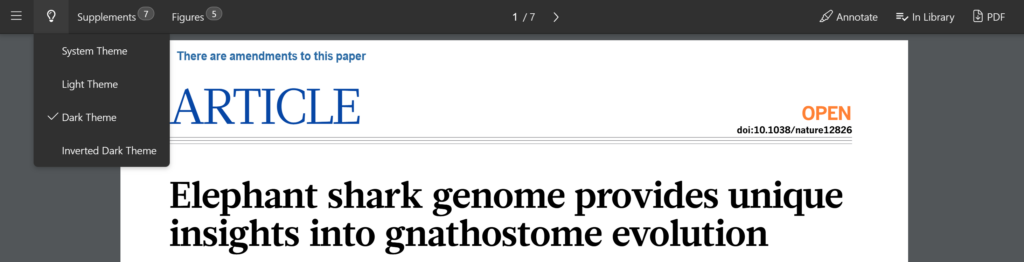
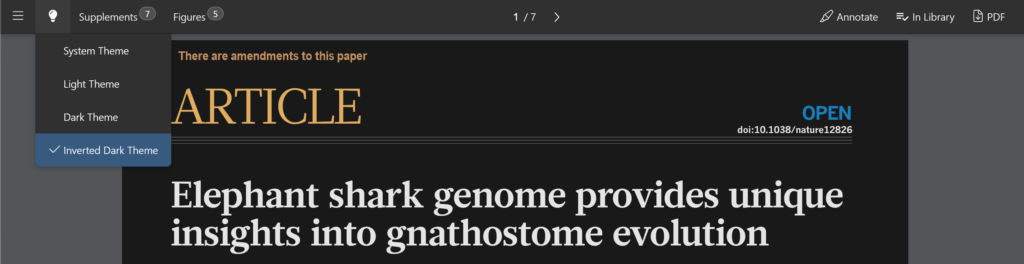
- Click the Theme icon it the top of the toolbar
- Select your preferred theme: System Theme, Light, Dark, or Inverted Dark.
- The theme updates instantly for the current paper.
System Theme – automatically matches your device’s theme.
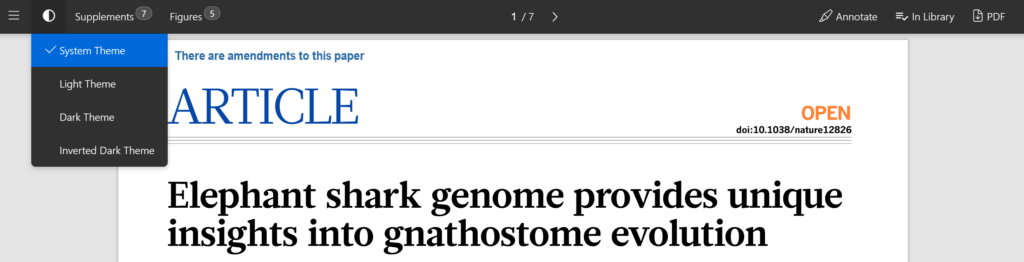
Light Theme – always uses the light interface.
Dark Theme – always uses a dark interface.
Inverted Dark Theme – uses dark interface with inverted document colors.
Mobile App
Dark Mode on mobile follows your device’s system theme as there’s no in-app toggle.
Android: Settings → Display → Dark Theme/Night Mode
iOS: Settings → Display & Brightness → Dark
Tip:
Inverted Dark is useful for maximum contrast while reading PDFs.
System Theme is a great choice if you switch between light and dark modes regularly.
For any questions please feel free to contact our support team at support@readcube.com.


