
How To Set Up My Institutional Proxy in ReadCube?
1 min read
Setting Up Proxy Access
With ReadCube, you can connect your institutional proxy to your account, enabling you to download content directly into your ReadCube library.
What is a Proxy?
Simply put, when you’re on campus, your university network recognizes your computer and gives you access to the content your library has subscriptions for. When you’re off-campus, your university’s library uses a program called EZProxy to set up a “proxy server.” This software gives each university a distinct EZProxy link, which lets your computer act as though it’s on campus, even when it isn’t.
Setting Up Proxy on ReadCube
To do this, click “Settings” in the bottom left corner and select “Edit” next to “Institution.”
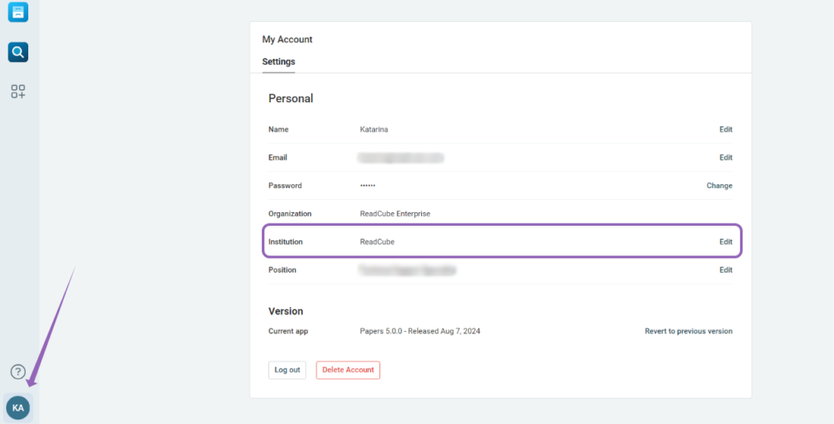
Once the section opens, enter the name of your institution and select one of the available proxy setup options:
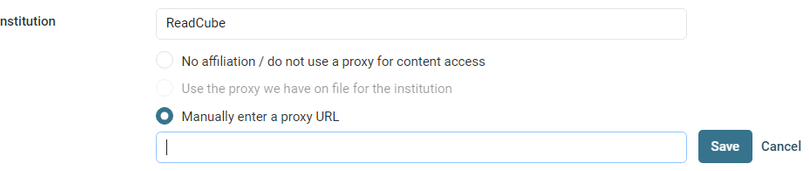
- No affiliation/do not use a proxy for content access – disables proxy access for your account; no proxy will be set up.
- Use the proxy we have on file for your institution – after you enter your institution’s name, this option becomes available if we have a proxy on file for it.
- Manually enter a proxy URL – manually input the proxy URL provided by your institution’s library.
Click “Save,” and you’re all set — your institutional proxy is now configured!
If you run into any trouble or have questions, please feel free to contact us at ReadCube Support.


