
Introduction to ReadCube Search
< 1 min read
ReadCube offers several powerful ways to search your library of content. You can search directly for a title or author, but you can also do something more complex.

By clicking the magnifying glass next to the search field, you’ll get options to include or exclude certain words from your search, and even specify exactly what you’re looking for by having the app search through specific metadata in your library, such as author or journal — or, alternatively, to exclude them.
For instance, using the in-app search, you can specify that you’re looking for an article with the word “elephant” by the author “Wesley.” As you type, you’ll notice your terms populating in more search-friendly format in the search field:
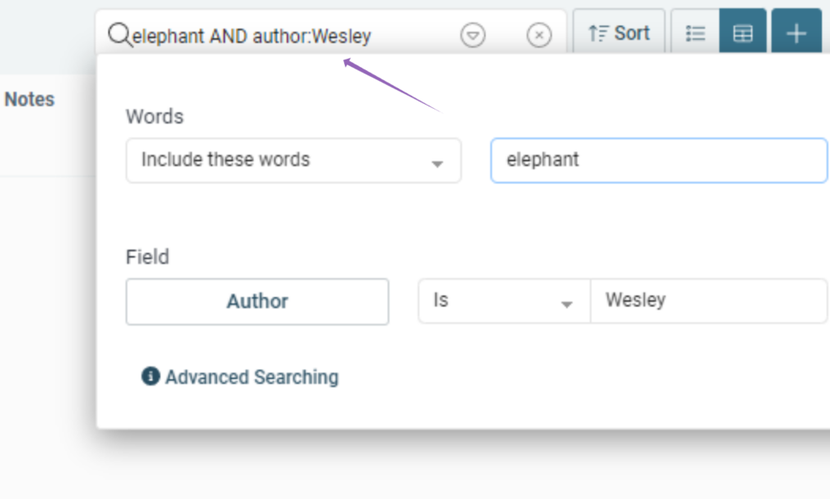
Once you’ve entered all your keywords, click back into the search text field and hit “Enter,” and your results will populate.

For more advanced searching tips, please see our article on Advanced Searching in ReadCube.


