
Saving Search Options in ReadCube
< 1 min read
ReadCube lets you save, or favorite, your searches so you can easily return to them.
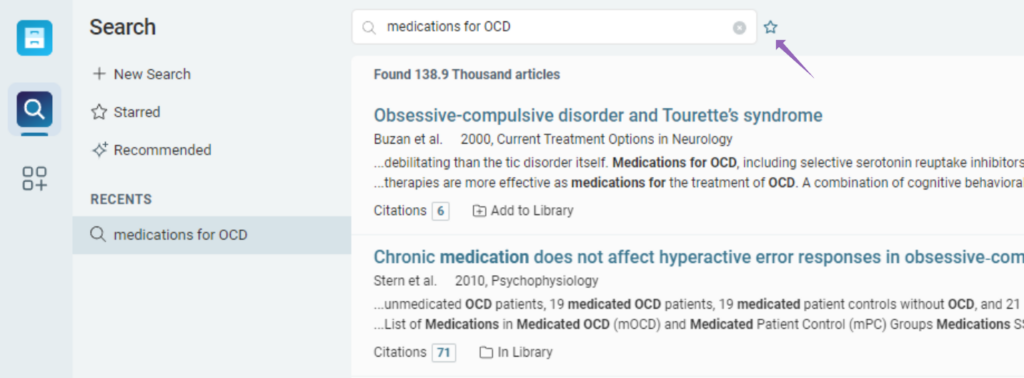
To begin, click the search icon in the far-left menu to open the search window.

This opens the ReadCube search window, where you can type in what you’re looking for. In this example, we’re searching for “medications for OCD.”

You’ll notice the search is automatically added to your “Recent” searches on the left-hand side. You also have the option to “favorite” a search by clicking the star to the right of the search field at the top, where you’ll be asked to name the search.
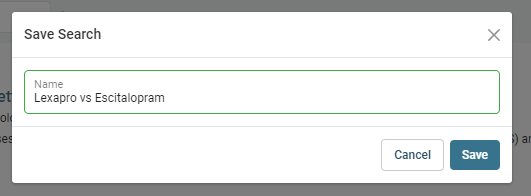
Once you’ve saved your search, those results — along with any others you’ve marked as favorites — will appear under the “Starred” menu on the left-hand side of the app.

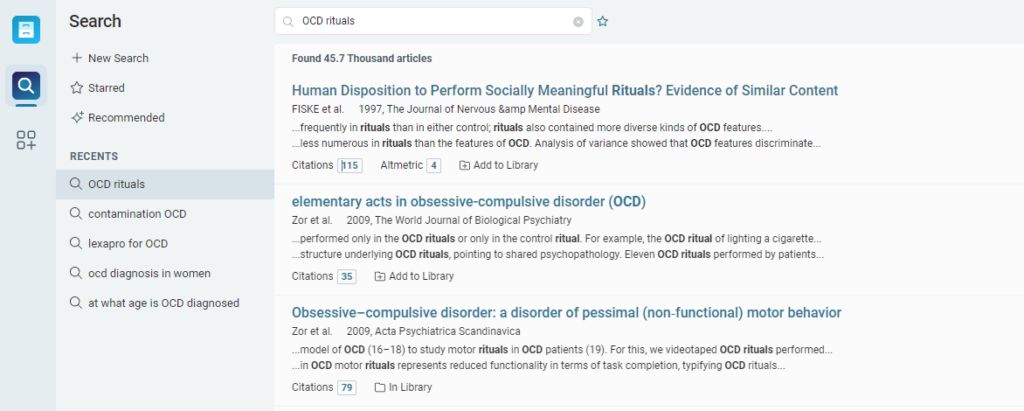
Saved searches make it easy to monitor your favorite queries for new publications. ReadCube also remembers your last five searches, so you can keep several searches going without needing to open multiple tabs.
If you have any questions, please reach out to us at ReadCube Support


